Intro
Lots of organizations often go through repetitive steps.
For example, many organizations still need to manually assign services, teams, agents, … to tickets in their service desk.
Imagine a system where at least part of this work is automated based on fair criteria, relieving some of the work load of the staff.
Here’s where this extension comes into play. With an automated scenario, you can apply one or more actions simultaneously.
If your use case is missing – Still reach out. It might be the next feature!
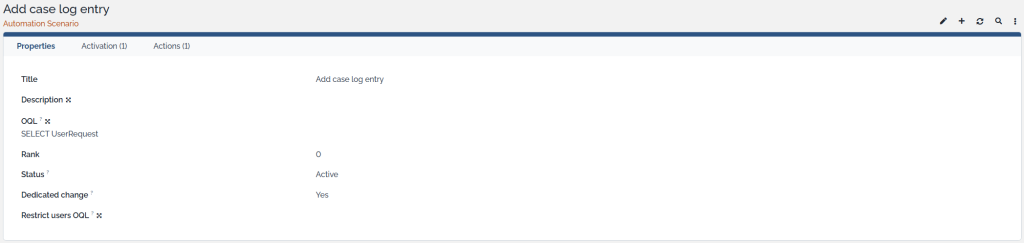
An Automation Scenario is the container. It contains some basic settings; a set of activation methods; and a set of actions.
- Name: The name of the scenario (visible to users in some places).
- Description: An optional description.
- OQL: The OQL query determines to which objects a scenario can be applied. Use the OQL to configure conditions that must be met before this automation scenario will be executed.
- Rank: It is possible multiple automation scenarios apply to an object, and are triggered the same way (e.g. on object creation or modification). The rank can be used to specify the order in which the automation scenarios must be executed.
- Dedicated change:
- “Yes” means that in the iTop activity panel, you’ll usually see a clear distinction of what happened through an automated action.
- No” means that the actions would be linked to the current user instead.
- Status: Active or Inactive. When inactive, the scenario will not be shown anywhere, nor can it be activated.
- Restrict users OQL: Optionally restrict this scenario to certain users. Specify an OQL to do so (e.g. only users with a specific name; or whose linked person is part of a group; or users with a certain profile; …)
Activation (“How”)
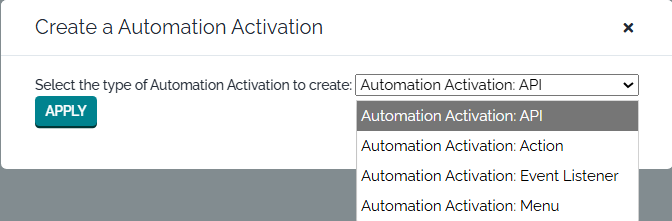
An Automation Scenario can be activated in various ways.
You can add or delete activation methods to the scenario using the Activation tab.
Below are the available methods.
- Action:
- This allows the automation scenario to be activated as an action linked to a standard iTop trigger.
- API:
- This is meant for integrations with iTop. A new action is available for the iTop REST/JSON API: automation/run_scenario .
- Required parameter:
- id : The ID of the scenario.
- Optional parameter:
- obj_ids : To which object(s) (within the set specified by the scenario’s own OQL query) the scenario should be executed. Be careful! When this parameter is not specified; it targets all objects matching the OQL of the scenario.
- Required parameter:
- This is meant for integrations with iTop. A new action is available for the iTop REST/JSON API: automation/run_scenario .
- Event Listener:
- This is a quick way to activate a scenario upon object creation or modification.
- Menu:
- This allows the scenario to be executed through the Other Actions menu on an object’s details page; or in a list view (if all objects are within the scope of the OQL query of the automation scenario).
Actions (“What”)
An Automation Scenario should have at least one action.
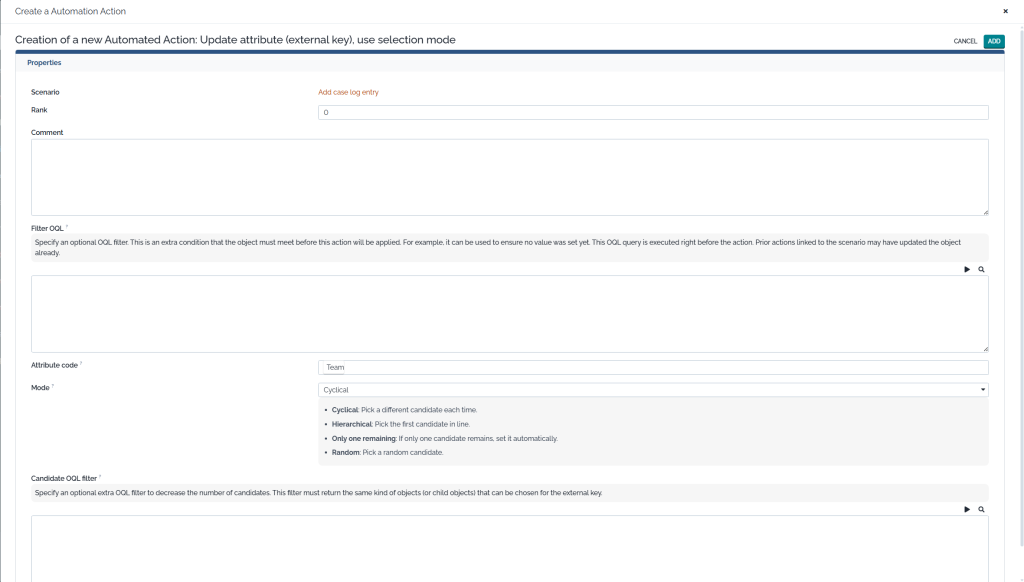
An action usually has at least the following properties:
- Comment: A short explanation of what is intended.
- Rank: Use this to order the actions. A lower rank is executed first.
- Filter OQL:
- It’s possible to define an even stricter OQL than the one defined on the scenario.
- The OQL must target the same object class as the OQL defined on the scenario.
- This OQL is evaluated right before the action is executed. If a prior action already updated an object property, it will be aware of this.
- Hint: This can be used to only execute the action (e.g. set a value) if the attribute value is still null.
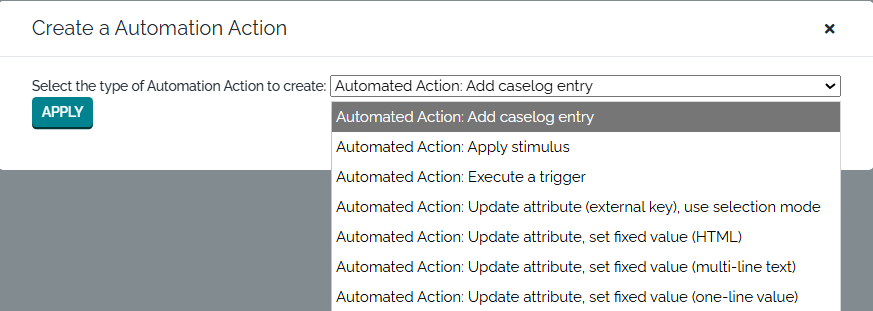
List of actions
Most of these actions are self-explanatory, with minimal configuration.
- Add caselog entry.
Adds a log entry. - Apply stimulus.
If the object has a lifecycle: transition to a different state (e.g. put a user request in “pending” state). - Execute trigger.
This can activate a new iTop trigger; “On automation action”. To this trigger, you can link the standard actions available for iTop triggers (e.g. e-mail notification, webhook, … ). - Update attribute (external key), use selection mode.
A more advanced action to point to another iTop object.
For example, it can be used to assign a team or agent automatically. The action allows narrowing down the candidates (allowed values).
A selection mode can be chosen to determine the final candidate:- Cyclical: The first time it will assign candidate 1; the second time candidate 2; the Nth time candidate N; after which the cycle restarts.
- Hierarchical: Assign the first remaining candidate.
- Random: Assign a random candidate.
- Only one remaining: Only assign if there is only one remaining candidate anyway.
- Update attribute, set fixed value (HTML).
- Update attribute, set fixed value (multi-line text).
- Update attribute, set fixed value (one-line value).
Screenshots
Screenshots taken on the 25th of February, 2026. Expect more features to come.