
It’s possible to require Kerberos authentication before allowing access to a web application, let’s say served by an Apache2 web server.
In practice, for one of my favorite web applications (iTop); it means internal domain users could be automatically authenticated. They would not need to provide their credentials and there’s no need to configure an external Identity Provider using SAML or OpenID.
I’ve initially first set it up for a WordPress plugin called “Next Active Directory integration”, to allow single-sign on to the WordPress. Later on, I also configured iTop to work this way.
Prerequisites
For this post, we make the following assumptions about the infrastructure:
- There is an Active Directory in place in a typical Microsoft Windows enterprise environment.
- There is an Apache2 web server – using a Debian-based operating system (I’m personally using Ubuntu).
This webserver can connect to the primary domain controller of the Active Directory environment.
This domain controller should allow inbound connections coming from the webserver on both UDP and TCP port 88.
Note that I try to follow best-practices and security standards which are in place when writing this post, in February 2024. If you come here after several years, the instructions or recommendations may be slightly different.
Reference
In this post, we’ll be using:
| YOURDOMAIN.ORG | This is the Fully Qualified Domain Name (FQDN) of your Windows domain. |
| webserver.yourdomain.org | This is the name of your webserver. Note: We did not domain-join this webserver in any specific way. |
| krb5.webserver01 | The user name of the Active Directory user account that will be used for the service. |
| DontJustCopyThis*1234 | The password of the Active Directory user account that will be used for the service. |
Active Directory configuration
Let’s prepare the Active Directory side. What we need here, is a regular user account. This user does not need to belong to any privileged groups. In fact, I recommend against it. Ideally, this should be a dedicated account.
- Open Active Directory Users and Computers.
- Create a new user. Give it a decent name ( e.g. krb5.webserver01 ) and secure password.
In the rest of this post, we’ll be using krb5.webserver01 and DontJustCopyThis*1234 as password. - Set the password to never expire.
- In the properties, under “Account”, check these boxes:
- User cannot change password.
- Password never expires.
- This account supports Kerberos AES 256 bit encryption. (Scroll down a bit, it’s also in the list of Account options).
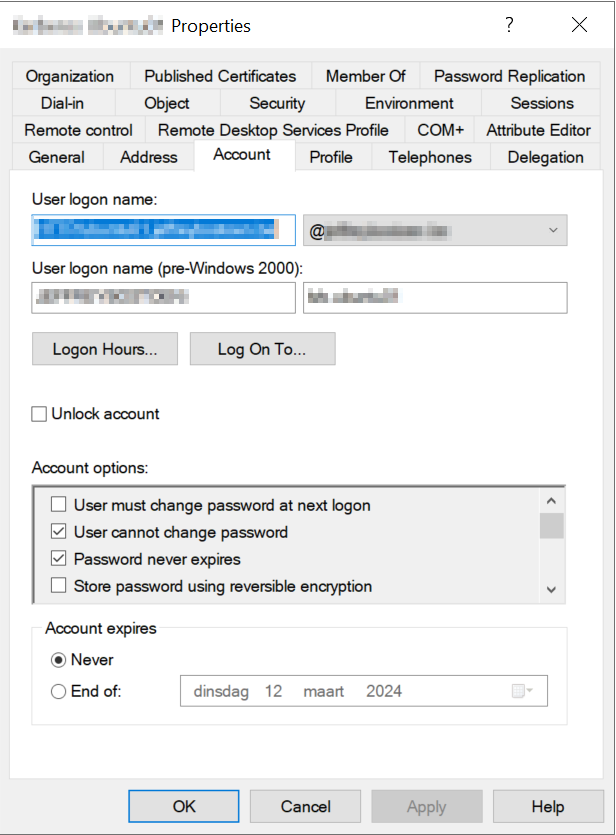
We’ll also need to generate a so-called keytab using the ktpass command. There are some variants of this instruction on the Internet, with some for example allowing all cryptography algorithms. I want to keep it as secure as possible, and explicitly want to restrict it to only support AES-256. This may lead to an additional challenge which gets covered below.
I suggest executing this in an elevated (Run as administrator) command prompt on a domain controller:
ktpass -princ HTTP/webserver.yourdomain.org@YOURDOMAIN.ORG -mapuser krb5.webserver01@YOURDOMAIN.ORG -pass DontJustCopyThis*1234 -ptype KRB5_NT_PRINCIPAL -kvno 0 -crypto AES256-SHA1 -out krb5.webserver01.keytabQ: What is a keytab file?
A: A keytab is a file containing pairs of Kerberos principals and encrypted keys that are derived from the Kerberos password. You can use this file to log on to Kerberos without being prompted for a password.
Q: Can I use a “service account” for this?
A: I looked into service accounts (introduced in Microsoft Windows Server 2016), but that was a dead end for me.
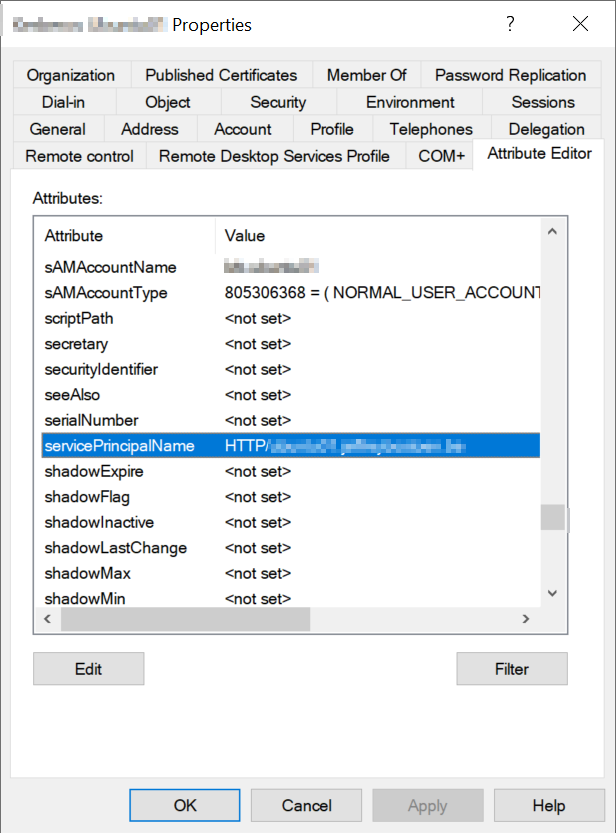
You can verify if the proper SPN (Service Principal Name) is set. In Active Directory Users and Computers, under View, make sure Advanced features is checked.
Then, when viewing the properties of the user account, you should see the HTTP/webserver.yourdomain.org@YOURDOMAIN.ORG value in the Attribute Editor tab for servicePrincipalName.
Kerberos configuration (webserver)
Time to configure the server.
apt install krb5-userNow, take your favorite text editor to change the configuration file /etc/krb5.conf .
Under the [realms] section, you’ll want to add your own Active Directory domain in uppercase.
[realms]
YOURDOMAIN.ORG = {

	# Specify at least one Kerberos Domain Controller (KDC).
	# Usually, your primary domain controller acts as a Kerberos Domain Controller.
	# If you want to specify additional KDCs, just enter one line like this for each KDC:
	kdc = 10.1.10.1

	# Admin server. In most setups, just point to the primary Domain Controller.
	admin_server = 10.1.10.1

	# AES256 made things a bit more tricky. To avoid trying deprecated cryptography such as RC4-HMAC and only use AES256:
	default_tkt_enctypes = aes256-cts-hmac-sha1-96 rc4-hmac
	default_tgs_enctypes = aes256-cts-hmac-sha1-96  rc4-hmac
	permitted_enctypes = aes256-cts-hmac-sha1-96 rc4-hmac
}
Let’s put this configuration to the test. On the Linux webserver, you can now try the command below. Note that this is NOT our krb5.webserver01 user; but just another regular user account!
kinit your-user@YOURDOMAIN.ORGYou won’t see much if everything goes right. If something goes wrong, you’d see an error message.
For example:
- kinit: Client ‘nonexistinguser@YOURDOMAIN.ORG’ not found in Kerberos database while getting initial credentials. – After entering an incorrect username.
- kinit: Password incorrect while getting initial credentials. – After entering an incorrect password.
To truly validate, run:
klistThis should output info about the ticket cache such as the default principal, two timestamps to indicate during which period the ticket will be valid, and a service principal such as krbtgt/YOURDOMAIN.ORG@YOURDOMAIN.ORG .
Q: What is this krbtgt string?
A: KRB = Kerberos, TGT = Ticket Granting Ticket. KRBTGT is a default account that exists in all Windows domains. It is meant to act as a service account (specifically for the KDC = Key Distribution Center) for domain controllers.
To clear the credentials, run:
kdestroyApache2 configuration (webserver)
We’ll assume you already have your Apache2 up and running; with SSL enabled.
We’ll be using this module: GitHub – gssapi/mod_auth_gssapi: GSSAPI Negotiate module for Apache .
Let’s first get this concept working. I do recommend reading some of the documentation after we manage to pull this off, as it also contains some other options (I recommend reading up on GssapiUseSessions ).
Anyhow, we’ll need to install this module:
apt install libapache2-mod-auth-gssapiNow, for the sake of my implementation, I personally had a virtual host configured on port 443. The server name (host header) was webserver.yourdomain.org .
I put these settings in my location block (I only had one):
<Location/>

	AuthType GSSAPI
	AuthName "Kerberos Authentication"

	# The keytab file that was generated before.
	GssapiCredStore keytab:/privkeytab/krb5.webserver01.keytab
	GssapiAllowedMech krb5
	GssapiBasicAuth Off

	# Play around with this setting as needed.
	# "On" means the remote user would be identified as "someuser", with "Off" it would be "someuser@YOURDOMAIN.ORG".
	GssapiLocalName Off

	# Users should not be able to transmit sensitive data over non-SSL/TLS connections.
	GssapiSSLonly On

	# Only accept users who are able to authenticate.
	require valid-user

</Location>
As you see, we need to transfer the krb5.webserver01.keytab file that we generated on the Windows domain controller to our Linux webserver.
In this example, I’ve transferred it to the /privkeytab folder. Now, make sure the user account linked to Apache 2.4 (often www-data) has permissions to use this:
chown -R www-data:www-data /privkeytabAdditionally, don’t forget to at least reload the Apache configuration. Although, if possible, I always perform a restart instead for this.
service apache2 restart && service apache2 statusHint: If you have PHP installed, just make a simple PHP file which can echo our “remote user” variable later on. $_SERVER[‘REMOTE_USER’] is the variable where the web application will be able to grab the username from.
<?php
	echo 'Identified remote user: "'.$_SERVER['REMOTE_USER'].'"';
Browser configuration
Finally, the browser configuration. It’s commonly referred to as SPNEGO (Simple and Protected GSSAPI Negotiation Mechanism).
Below I’ll describe the steps to enable it on an individual machines. If you’re a system administrator; consider using group policies to deploy these settings to all your domain users and machines.
If you want to perform a quick test, navigate to the PHP file you created earlier. You should NOT be prompted for authentication. You should be automatically signed in. Your username should automatically be shown.
Microsoft Edge and Google Chrome
Open good old iexplore.exe .
- Go to Tools > Internet Options.
- In the Security tab, select Local Intranet.
- Click [Sites].
- Add: https://webserver01.yourdomain.org (or https://*.yourdomain.org if you want to be more lenient ).
- Close the window.
- Click [Custom level…].
- Scroll to the bottom, find User Authentication > Logon.
- Select Automatic logon with current user name and password.
- Save and close all.
Mozilla Firefox
- In the address bar, type about:config and press [Enter].
- In the filter/search field, enter negotiate.
- Find the setting named network.negotiate-auth.trusted-uris.
- Make sure it includes https://webserver01.yourdomain.org and save.
- Restart Mozilla Firefox.
iTop configuration
As a bonus, I’ll show you how to configure iTop to accept these kind of logons. If you want additional security, you can still check my “pro” extensions and use the Multi-Factor Authentication.
We’ll be configuring “external” authentication.
Open the iTop configuration. We’ll need to update two settings.
'allowed_login_types' => '...',This setting lists the allowed login modes, seperated by the pipe ( | ) character. “External” needs to be present here. By default, it’s added at the end, according to the “Configuration parameters” documentation. However, another page suggests to put it first:
In order to ensure that the external authentication is used first (preventing iTop from prompting the already authenticated user a second time), make sure that in the iTop configuration file, the order for allowed_login_types specifies “external” as the first login mode
User Authentication Options [iTop Documentation] (itophub.io)
Do put it first!
The second setting is this one; which you should set to match the $_SERVER[‘REMOTE_USER’] variable:
'ext_auth_variable' => '$_SERVER[\'REMOTE_USER\']',Now save.
Make sure in iTop you do have a User account created.
If you’re going to use short login names (“someuser”), set GssapiLocalName in the Apache configuration to “On”.
Otherwise, with GssapiLocalName set to “Off”, your user accounts would be named “someuser@YOURDOMAIN.ORG” instead.
Some common issues
Often, posts don’t include how to troubleshoot. I’ll share some issues I’ve ran into myself, and some solutions. You may want to consider setting a specific error_log directive in the Apache configuration; so you can easily see the Kerberos-related issues
Incorrect service principal name
[Sun Feb 11 13:29:16.940771 2024] [auth_gssapi:error] [pid 5428:tid 139654099572288] [client 192.168.0.210:64532] GSS ERROR In Negotiate Auth: gss_accept_sec_context() failed: [Unspecified GSS failure. Minor code may provide more information (Request ticket server HTTP/webserver01.yourdomain.org@YOURDOMAIN.ORG not found in keytab (ticket kvno 1))]
Solution: Double-check whether the keytab actually does contain this entry.
Enctype issues
[Sun Feb 11 13:42:42.501763 2024] [auth_gssapi:error] [pid 5852:tid 139767178040896] [client 192.168.0.210:63466] GSS ERROR In Negotiate Auth: gss_accept_sec_context() failed: [Unspecified GSS failure. Minor code may provide more information (Request ticket server HTTP/webserver01.yourdomain.org@YOURDOMAIN.ORG kvno 4 found in keytab but not with enctype rc4-hmac)]Solution: In krb5.conf, make sure to specify the encryption types. In the keytab, only AES256 was included; so /etc/krb5.conf had to be adjusted. Otherwise, it still tried to authenticate with the insecure RC4-HMAC.
Afterward, I also learned that I might have seen even more info when creating a trace file I could check after running this command:
KRB5_TRACE=/tmp/krb5_trace.log kinit -Vkt /privkeytab/krb5.webserver01.keytab HTTP/webserver01.yourdomain.org@YOURDOMAIN.ORGThen, not only check the output of the above command, but also of the trace log /tmp/krb5_trace.log .
Ticket out of date
[Sun Feb 11 13:57:52.894981 2024] [auth_gssapi:error] [pid 6349:tid 140421321233984] [client 192.168.0.210:63692] GSS ERROR In Negotiate Auth: gss_accept_sec_context() failed: [Unspecified GSS failure. Minor code may provide more information (Request ticket server HTTP/webserver01.yourdomain.org@YOURDOMAIN.ORG kvno 4 not found in keytab; ticket is likely out of date)]To be honest, this one was only resolved after I rebooted the machine I used to navigate to the web application. I think I just should have purged the cache there. Running klist purge on this Windows machine may have spared me from a reboot.
When running klist on Microsoft Windows, you’ll also get an overview of the cached tickets. You’ll see the same krbtgt/YOURDOMAIN.ORG@YOURDOMAIN.ORG ; and also a ticket where the server is listed as HTTP/webserver01.yourdomain.org@YOURDOMAIN.ORG . It also includes some extra info such as the validity period and session key type (encryption). It also lists the KDC (Kerberos Domain Controller) that was used.
SPNEGO cannot find mechanisms to negotiate
Sun Feb 11 14:41:02.838029 2024] [auth_gssapi:error] [pid 14397] [client 192.168.0.210:61579] GSS ERROR In Negotiate Auth: gss_accept_sec_context() failed: [Unspecified GSS failure. Minor code may provide more information ( SPNEGO cannot find mechanisms to negotiate)]
It means the SPNEGO authentication fails.
In my case, I was just messing around with settings in the Apache configuration that led to the error above.
No credentials were supplied, or the credentials were unavailable or inaccessible (Unknown error)
[Sun Feb 11 20:40:55.691852 2024] [auth_gssapi:error] [pid 4492] [client 192.168.0.210:57991] GSS ERROR In Negotiate Auth: gss_accept_sec_context() failed: [No credentials were supplied, or the credentials were unavailable or inaccessible (Unknown error)]The above error occurred if I used Google Chrome to navigate to the web application, without it being in the list of local Intranet websites. It then shows a prompt instead to enter credentials. Trying do dismiss it and not entering credentials, leads to the above. However, when manually entering correct credentials; it won’t display this.
Background info
Useful links
- Generic Security Services Application Program Interface – Wikipedia – Info about GSSAPI.
- keytab — MIT Kerberos Documentation – Info about keytab.
- krb5.conf — MIT Kerberos Documentation – Info about krb5.conf and its parameters.
- Service Accounts | Microsoft Learn – Info about service accounts in the Active Direcotry.
- KWTS Kerberos LDAP, SSO, Proxy authentication problems [Kaspersky Web Traffic Security] – Advice and solutions for Kaspersky Security for Internet Gateway – Kaspersky Support Forum – Some additional help in troubleshooting.
Used versions
While writing this tutorial, my environment looked like this:
- Microsoft Windows Server 2022.
- Ubuntu 22.04 LTS
- krb5-user : 1.19.2
- Apache 2.4: 2.4.52
- libapache2-mod-auth-gssapi: 1.6.3